

Identify what is failing
Support information on jili66ph.net starts with the symptom: a page that does not load, a rejected sign-in, an installation question or an account-specific issue. Choose the matching section instead of changing several settings at once.
A page is not loading
Check another ordinary website, then compare Wi-Fi and mobile data where available. Note whether all pages fail or only the external destination. Reload once, wait for the request and record the browser message. A connection tool cannot guarantee that a destination will accept access.
An account step is not working
Read the complete message and distinguish a rejected credential from an unavailable verification method. Use the recovery controls on the service holding the account. Never give a password or one-time code to someone offering to complete the step for you.
An app or installer is unclear
Review the distribution address and publisher before installing. Record the device and operating system if an error occurs. This website does not distribute an app package or provide device-specific installation certification.
Make the next question specific
For a website issue involving jili66ph.net, include the page, approximate time, device, browser and a redacted screenshot if useful. For account restrictions or service records, contact the provider responsible for that account.
VPN Download Tutorial
Optional setup for Cloudflare 1.1.1.1. App screens may vary by version. Use services permitted on your network and review the provider’s notices.
iOS
Open the App Store.
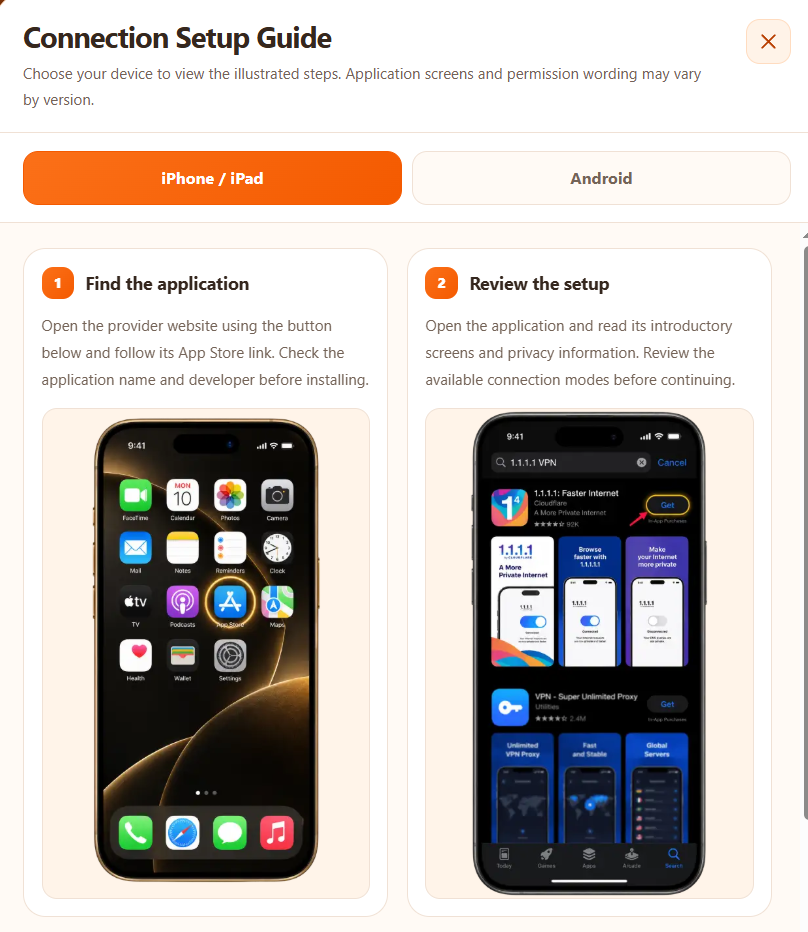
Find 1.1.1.1: Faster Internet and check that the developer is Cloudflare before installing.
Open the app, review the notices and follow setup. Approve the VPN profile when your device asks. The reference image shows the disconnected state.
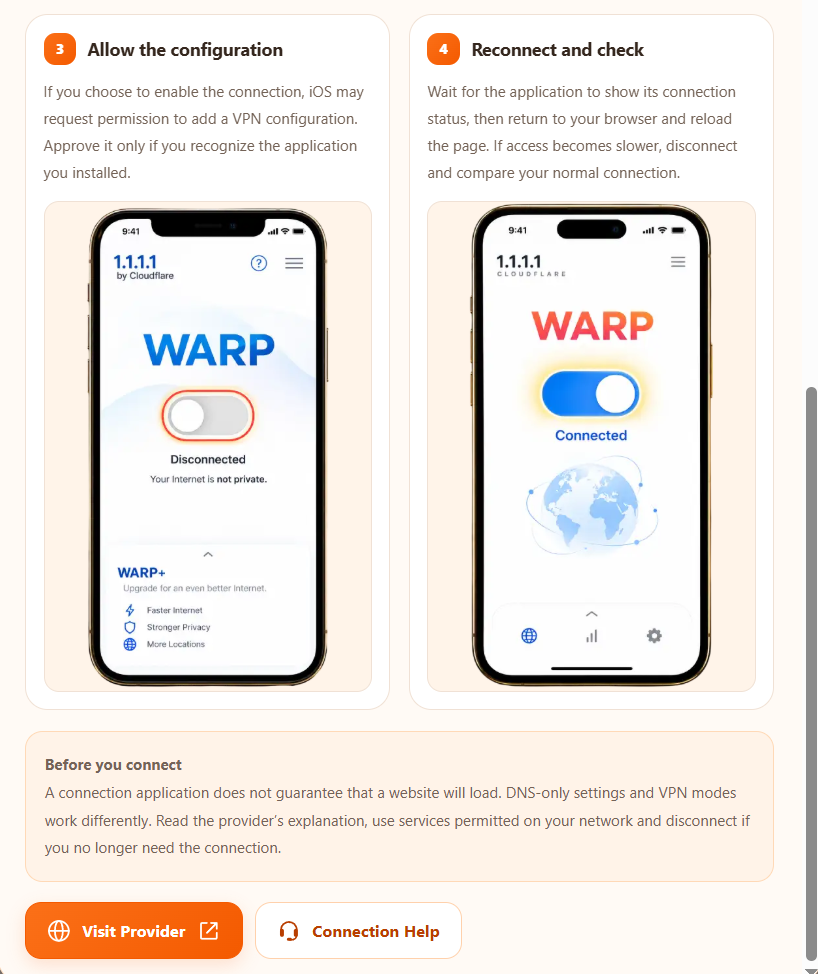
Turn on WARP and wait for the app to report Connected. Return to your browser. If access does not improve, disconnect and compare your normal connection.
Android
Open Google Play.
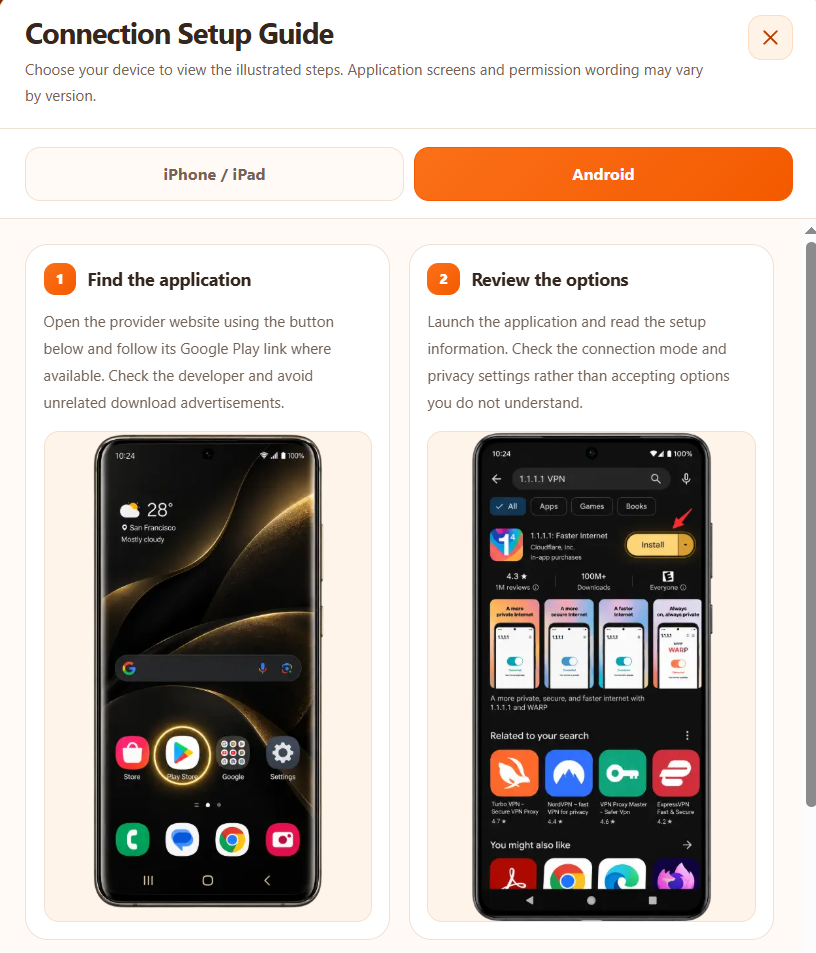
Find 1.1.1.1: Faster Internet and check that the developer is Cloudflare before installing.
Open the app, review the notices and follow setup. Approve the VPN profile when your device asks. The reference image shows the disconnected state.
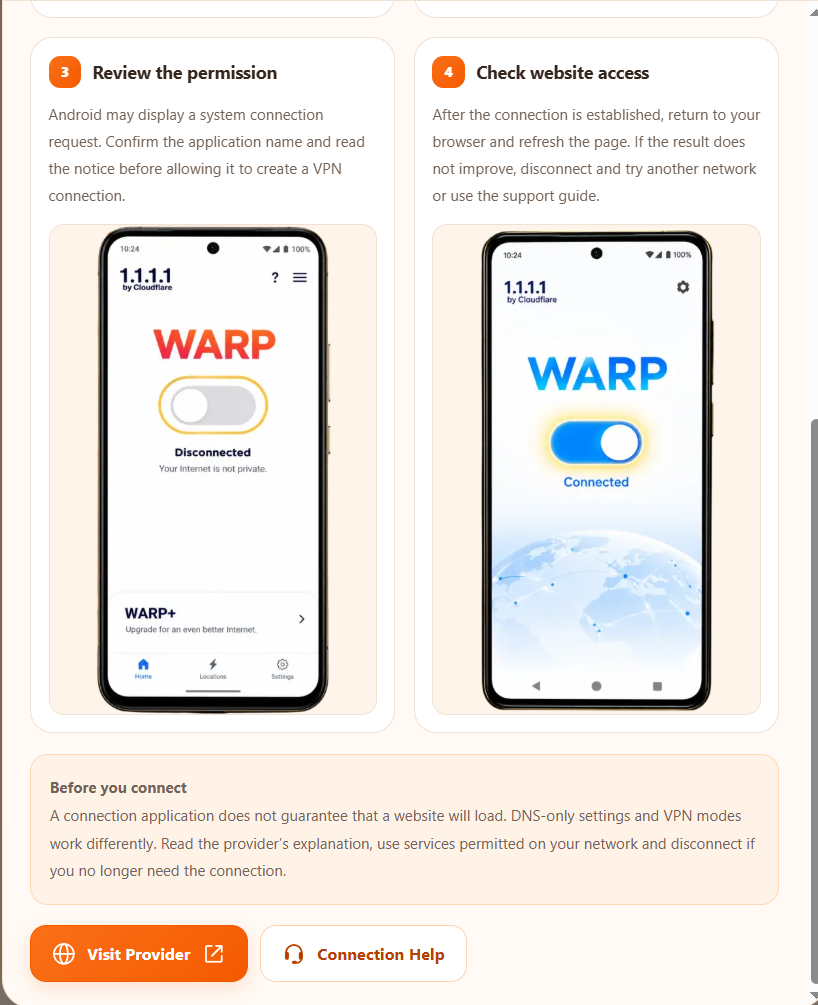
Turn on WARP and wait for the app to report Connected. Return to your browser. If access does not improve, disconnect and compare your normal connection.